Viewer Controls
Tonico.app's Chart Viewer is designed to keep the interface out of your way so you can read, navigate, and play through a song without friction.
Open a chart and read it anywhere, your way
The Tonico.app Chart Viewer is intentionally simple. It has two main parts:
- The header: where you will find the chart details, core controls, and navigation options.
- The chart content: where the sections, phrases, and the rest of the song's musical content live.
The header
In the center of the header, you can identify the song title, artist, and the transcribed version or album. The chart details also include Transcriber Notes, which are any comments the transcriber considered worth adding, and Reference Links, which the author may include so you can hear the exact version that was transcribed. Each platform button takes you to its corresponding link.
Next to the chart title, you will find two useful buttons:
- Reload: Reloads the chart in a special way. This is helpful when recent changes were published and you are not seeing them reflected yet.
- Copy to My Charts: If you have a Tonico.app account, clicking this opens the Dashboard and creates an exact copy of the chart in your library. That copy stays linked to the source chart for lineage and attribution.

Below the chart identity area, you will find the display controls:
- Key: Changing this selector instantly transposes the chart to the new key.
- Settings: Defines how the chart will look once you enter Play mode.
- Columns: Sets how many columns the chart content should use on your screen, up to three columns.
- Pagination: If the chart spans multiple pages on your device, Continuous preserves the rightmost column when you advance, while Full performs a complete page turn.
- Lyrics: Changes the lyric size in the chart, including an option to hide lyrics entirely.
- Chords: Changes the chord size without affecting the lyrics.
- Play: Enters Play mode, which hides non-essential elements and uses as much screen space as possible for the chart itself.
- Light / Dark: Switches the color theme to match your preference.
On the left side of the header, you will find a link back to the Tonico.app home page, a link to the Dashboard if you have an account, and the language switcher for the viewer interface. That language toggle affects the viewer controls and buttons, not the lyrics of the song itself.
Chart content
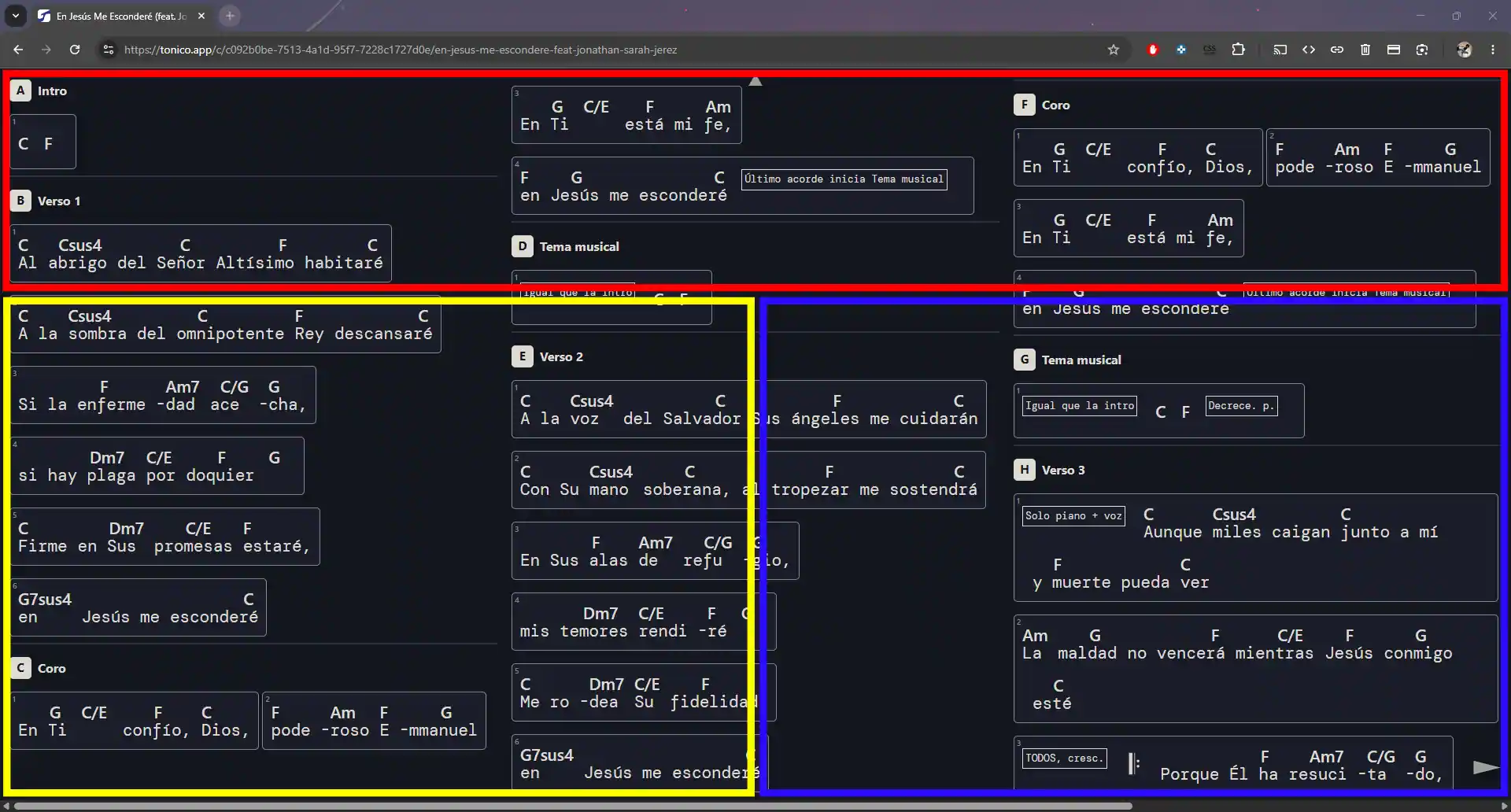
This is where you see the chart exactly as the author transcribed it, including text notes and any other musical content such as chords, key changes, and symbols.
The chart layout, especially the column distribution, only takes effect after you enter Play mode. Before that, the page stays in a vertical scrolling layout.
Play mode
When you enter Play mode, the viewer clears visual distractions and activates three special controls so you can handle the chart as easily as possible. These controls are three invisible areas that cover the full screen of your device.
- Tap the top half / press Esc: Exit Play mode.
- Tap the lower-right half / press Space / press Right Arrow: Advance one page.
- Tap the lower-left half / press Left Arrow: Go back one page.