Basic Content for Your Chart
Tonico is not meant for stitching together a pretty-looking document with a pile of patches. It is meant to help you build a chart that is clear, musical, and easy to maintain. To do that, it relies on a few basic building blocks that are worth understanding from the start.
Sections & phrases
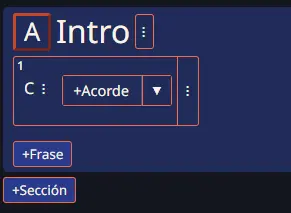
Sections are the largest blocks in the song: intro, verse, chorus, bridge, or whatever block you need to name. The name itself is entirely up to you. Sections automatically receive an identifying letter, A, B, C, and so on, according to the order in which they appear in the chart.
Phrases let you separate musical ideas more precisely and more coherently inside a section. How do you identify a phrase? Definitely not by musical measure. As the transcriber, you can define a phrase however you want: one lyric line, a group of chords that naturally belong together, or any other unit that makes sense to you. Phrases are automatically numbered inside each section, which becomes very practical in rehearsal: "Section C, phrase 4."
This model makes the chart much more flexible. A quick arrangement change usually means moving, splitting, or editing a few phrases instead of rebuilding a whole document.
Content
The third and last level of depth is the actual content of the chart: chords, with or without lyrics, musical symbols, performance notes, and key changes. Content lives inside phrases, completing the structure: Section > Phrases > Content. Those content types are enough to build the whole chart. If you have a suggestion for another content type, feel free to email me at hello@tonico.app.
Each content type has its own Builder. In this part of the tutorial I will explain the simplest use of each one, and the next tutorial page will focus on more advanced use cases.
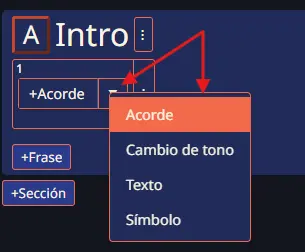
Inside every phrase you will find a button for adding content. If you click the small arrow, you can choose which type of content to insert. By default, the Builder that opens is the Chord Builder.
Chord Builder
This is probably the content type you will use the most. In fact, every time you add a new phrase, the Chord Builder opens automatically to save you time. I will describe it from top to bottom.
Buttons for lyrics and fret notation
I will explain those a bit later. For now, I only recommend using fret notation when it is really necessary to point out a very specific voicing.
Live preview and main controls
The long blue bar shows the chord name in real time as you build it. I genuinely tried to use the most common naming conventions for each structure. During that process I discovered there are more rules for naming a chord than there are rules in baseball. If you have a proposed adjustment, feel free to send it to me, preferably with documentary evidence to defend your case.
On the right side you will find the Add or Save button, depending on the case, and the X to cancel, which discards any change or input you made inside the Builder.
Chord interval selector
As far as my plans and math go, it is virtually possible to build any chord. In this strip you have each interval available so you can choose exactly what to add. You can manipulate them however you want, even beyond the key you are currently working in. That means you can build a Cm chord by changing the third even if the chart is in C major. The same idea applies to any other interval.
One small detail I added is that the exact note represented by each selected interval appears inside its slot. That can be surprisingly useful if you are also working out vocal harmonies in parallel.
Root selector
Please do not throw rocks at me over how many notes someone may decide to cram into a "chord." What matters here is identifying the root note, not confusing it with the bass note, which may be different. In any diatonic scale you have a C, D, E, F, G, A, or B, with whatever alterations belong to the current key, of course.
Whatever your level of harmony knowledge may be, you only need to remember that certain chords appear naturally inside each key. The Builder can preselect the intervals of those chords just by pressing the corresponding root note.
That means when you choose the first degree in a major key, you are not only choosing the root but also a major third and a perfect fifth. If you choose the second degree, the intervals become a minor third and a perfect fifth, and you will see that reflected in the chord name immediately.
Recommended order of use
The best workflow is to choose the chord root first, then the specific intervals if needed, and finally the bass note if it differs from the root. Lyrics and fret notation are completely optional.
Chord Builder: intermediate level
What happens if you need seventh chords all over the chart? Or inversions, or non-diatonic chords? Do not worry, I have good news. Tonico supports all of that naturally and, more importantly, all of those chords will transpose correctly when you use key changes, both in the editor and in the viewer.
A non-diatonic root
If the chord root does not belong to the key, for example Eb inside C major, you have a small checkbox called Non-diatonic. Once enabled, it shows the other possible root notes that are not part of the current key. If you are a harmony nerd, you will also see the altered scale degree shown under each one, even though that is only one of several possible interpretations.
Adding diatonic sevenths
If your chart uses sevenths frequently, there is a dedicated checkbox so that, in addition to building the triad, the Builder also adds the corresponding diatonic seventh.
Bass notes and inversions
The last checkbox in the Builder opens a whole new world: it reveals the bass note options. Without altering the chord root or intervals, you can arbitrarily choose which note will appear in the bass, and that is immediately reflected in the chord name.
Because it is also a note selector, it follows the same concept: diatonic vs. non-diatonic, with its own checkbox to reveal non-diatonic options. That means you can build things like CMaj7/Eb while working in C major without any problem.
Lyrics and fret notation
The Chord Builder offers two complementary features: a lyrics editor and a section for writing the chord position precisely for guitar.
The lyrics editor lets you position the chord exactly above the syllable you want by using the position slider. If you need to indicate that the chord should appear before the lyric, I recommend adding "- " as part of the text. The same idea applies when the chord should land after the last syllable. You get live preview feedback while adjusting everything before saving.
Also, in the Tips & Shortcuts tutorial I will show you a much more effective way to enter a song's lyrics. Inside the Chord Builder, this mechanism should be seen more as a quick editing tool.
As for fret notation, it is worth clarifying that inside the editor it does not create a special visual effect. But in the Viewer, meaning the published chart, any chord that includes fret notation will show that information when the pointer hovers over it.
The format is intentionally simple. It is not meant for writing melodic lines, only chord shapes that the transcriber considers worth preserving. x means the string is muted, and 0 means open string. If your guitar has 99 frets, congratulations, because that is the maximum value supported here.
Musical symbols
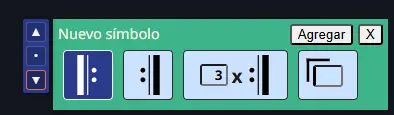
Use musical symbols to indicate how the chart should be performed. Right now the available options are repeat openings, repeat endings, repeat endings with multiple passes, and repeat boxes. Two of those symbols require you to enter a number, while the others can be inserted directly.
A few things that have helped me while transcribing:
- If you are writing chords only, without lyrics, you will probably use repeats and repeat boxes more often.
- Remember that this is a digital app. Unlike printed paper or a PDF with limited space, here you can copy and paste as many times as you need with no real penalty.
- In the end, what matters most is that the chart is easy to follow, especially if it will be used live. I almost always prefer a sequential chart: if the same chorus happens several times, I insert it several times in the order it appears instead of sending the reader from section F back to B just to "save space" for no real reason.
- In the end, it is your call.
Text notes
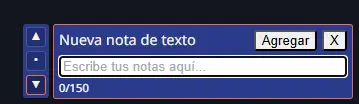
Use text notes for short cues that need to survive rehearsal and the stage: dynamics, instrument entries, arrangement reminders, or short performance instructions.
They are most useful when used with restraint. A few clear signals help far more than turning the chart into a wall of markings and commentary. Intentionally, the maximum length is 150 characters.
Key changes
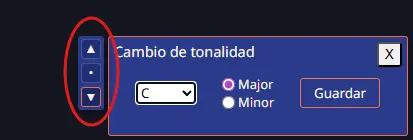
If a song modulates, mark the change exactly where it happens with a Key Change. Once inserted, Tonico knows which options to offer you from that point forward inside the Chord Builder. You can even change mode, and you can do it as many times as you want.
This is especially useful for songs with more than one tonal center or for live arrangements where the key changes between one part and the next. It also helps when the song repeats a chord sequence you already wrote, but in a different key, because a key change can save you from rewriting the whole thing or editing each chord one by one.
You can have as many Key Changes inside a chart as you want. You decide whether a small modal interchange is better represented as non-diatonic chords without a Key Change, or as a temporary key change that lasts only for part of a phrase before returning to the base key. That decision is yours.
Key Change is probably the most complex piece in all of Tonico, so it helps to have a reasonable harmonic idea of what you are trying to do before using it. Because of the implications of inserting, moving, or deleting one, you will find many cases where the app shows warnings asking what you want to do, how you want to do it, or simply blocking the action until you handle the Key Change first.
Moving, deleting, copying, or pasting sections and phrases that contain Key Changes are the trickiest scenarios. I intentionally limited the effect of those actions to avoid unwanted transpositions. Yes, they are possible, but sometimes they require more than one click before they are allowed to happen, precisely so the recalculation does not jump you from behind.
Transposition
This is one of the least known tricks in Tonico, even among beta testers: if you already wrote the entire chart, even with complex key changes, and then you change the chart's base key, everything is recalculated automatically. This happens in the editor.
It is especially useful when you start from a copy of someone else's version written in one key, but you want to transcribe your own version in another.
This is different from transposition inside the published chart Viewer, because here you are actually changing and recalculating the chart's real base key.